

Short answer
- Two different things. YouTube's RSS ingestion turns each episode into its own static-image video. A 24/7 stream is one live broadcast that plays episode after episode. Many shows do both.
- The reel is easy to build. Your show art plus the episode audio, joined into one video. Our tested commands below came out at about 66 MB per hour of audio, so roughly 60 hours fit in a 4 GB file.
- Level each episode before you join them. In our test, one loudness pass over the joined reel left one episode 5.4 LU under the target for its whole length; normalising each episode first put all four test episodes at -16.2 LUFS.
- Clean the audio first. YouTube says podcast content uploaded through RSS "cannot contain advertisements", host-read sponsorships have to be declared, and every live stream is scanned for third-party music, including your intro and outro.
- Run it from a server, not a laptop, and expect no archive: YouTube may not capture a stream that runs past 12 hours.
From YouTube Help, tested on our server.
RSS upload or a 24/7 stream: what each one does
YouTube already has a way in for audio-first shows. According to YouTube Help, when you submit your RSS feed, "YouTube will create videos for each podcast episode that you choose to upload", using "your podcast's show art to create a static-image video". New episodes upload automatically. The feature is "available in select countries/regions", and it does not notify subscribers about back-catalogue episodes.
That gives you a library: one video per episode, found through search and recommendations. A 24/7 live stream is a different object. It is a single broadcast that is always on, so a listener can drop in at any time, as they would with a radio station, and the stream shows up wherever YouTube surfaces live content.
| Compared | RSS ingestion | 24/7 live stream |
|---|---|---|
| What appears on the channel | One static-image video per episode | One live broadcast that plays episode after episode |
| New episodes | Uploaded automatically from the feed | Added when you rebuild the reel |
| How people find it | Search, recommendations, the podcast's playlist | Live surfaces and one link that is always playing |
| What it costs to run | Nothing | A machine or a service that streams around the clock |
| Kept as a video afterwards | Yes | Usually not: streams over 12 hours "may not be captured at all" |
The two do not compete. The episode videos are the archive; the stream is the always-on front door that points to it. If you only want your episodes on YouTube, RSS ingestion alone is the simpler answer.
Before you build it: ads, sponsors and music
A back catalogue was edited for a podcast app, not for YouTube, and three things in it can cause trouble.
- Baked-in ads. On RSS uploads, YouTube says that to comply with its Terms of Service, "podcast content you upload to YouTube cannot contain advertisements". Use the clean masters, not the files with inserted ad breaks, for the stream as well.
- Host-read sponsor spots. If your podcast includes branded content, YouTube says "you're required to let us know". Declare them on the stream too, or cut the reads from old episodes, since those deals have often ended.
- Music. YouTube says "All live streams are scanned for matches to third-party content". A licensed intro theme can still match: YouTube warns that "your live stream can be interrupted even if you've licensed the third-party content" unless the owner has allowlisted your channel. Check what your theme licence says about YouTube and live streaming; our guide to music licenses for 24/7 streams shows what to look for.
Guests and co-hosts agreed to a podcast, so if any of them are sensitive about video platforms, ask before their episodes go into a stream that runs on YouTube around the clock.
Build the episode reel
The stream needs a video, and for a podcast the picture can be a still: your show art at 1280 by 720 or 1920 by 1080. The reel is built in two steps: first bring every episode to the same loudness and format, then join them under the show art. Do not skip the first step. We tried it the short way and measured what goes wrong (below).
Step 1: one clean WAV per episode. This script measures each episode, then normalises it to -16 LUFS in a second pass and writes a 44.1 kHz stereo WAV. ffmpeg's loudnorm filter supports "single pass (livestreams, files) and double pass (files) modes"; with the measured values passed back, it can "Normalize by linearly scaling the source audio", so the episode keeps its own dynamics. Save it as norm.sh:
#!/bin/bash
# usage: bash norm.sh ep001.mp3 ep002.mp3 ...  (any audio format)
set -e
: > clean.txt
for f in "$@"; do
  m=$(ffmpeg -hide_banner -nostats -i "$f" \
      -af loudnorm=I=-16:TP=-1.5:LRA=11:print_format=json -f null - 2>&1 \
      | sed -n '/^{/,/^}/p')
  v(){ echo "$m" | python3 -c "import json,sys;print(json.load(sys.stdin)['$1'])"; }
  ffmpeg -hide_banner -loglevel error -y -i "$f" -af "loudnorm=I=-16:TP=-1.5:LRA=11:\
measured_I=$(v input_i):measured_TP=$(v input_tp):measured_LRA=$(v input_lra):\
measured_thresh=$(v input_thresh):offset=$(v target_offset):linear=true" \
    -ar 44100 -ac 2 "${f%.*}.wav"
  echo "file '${f%.*}.wav'" >> clean.txt
done
Run it with the episodes in play order: bash norm.sh ep001.mp3 ep002.mp3 ep003.mp3. It also writes clean.txt, the play list for step 2. If a linear gain would push an episode's peaks over the limit, the manual says "normalization mode will revert to dynamic" for that file, which is fine for speech.
Step 2: join the WAVs under the show art. Add up the WAV lengths and pass the total with -t, so the picture stops exactly where the audio ends:
T=$(for f in ep*.wav; do ffprobe -v error -show_entries format=duration -of csv=p=0 "$f"; done | paste -sd+ | bc)
ffmpeg -loop 1 -framerate 30 -i show-art.png \
  -f concat -safe 0 -i clean.txt -map 0:v -map 1:a \
  -c:v libx264 -preset veryfast -tune stillimage -crf 28 -g 60 -pix_fmt yuv420p \
  -c:a aac -b:a 128k -t "$T" -movflags +faststart \
  podcast-reel.mp4
We tested both steps on our server, with ffmpeg 7.0.2 and four 4-minute test episodes: three MP3s at 44.1 kHz mastered at -30, -12 and -20 LUFS, and one MP3 at 48 kHz at -18 LUFS. The reel came out at exactly 960 seconds of picture and sound, H.264 at 30 frames per second with a keyframe every 2 seconds, and every episode measured -16.2 LUFS. The 16-minute reel took 1 minute 33 seconds to build, both steps included.
What went wrong the short way
The first version of this guide, published on October 27, 2026, ran one loudnorm pass over the whole joined reel. On three test episodes at similar levels it hit the target (-15.8 LUFS), so we did not catch the problem then. With episodes mastered at different levels, the same command gave this:
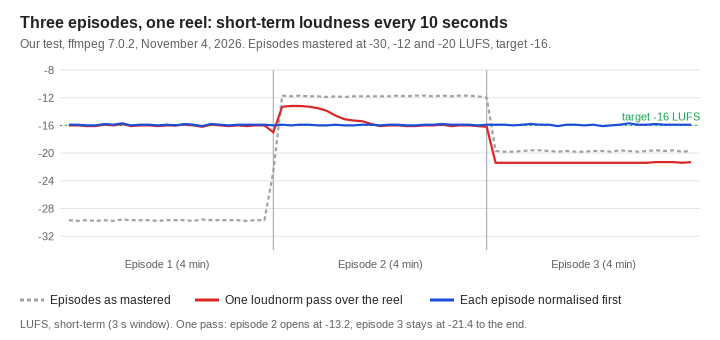
| Episode | As mastered | One pass over the reel | Each episode first |
|---|---|---|---|
| 1 (early season) | -30.0 LUFS | -16.3 LUFS | -16.2 LUFS |
| 2 (recent) | -12.0 LUFS | -15.2 LUFS, first minute at -13.2 | -16.2 LUFS |
| 3 | -20.0 LUFS | -21.6 LUFS | -16.2 LUFS |
| Spread between episodes | 18 LU | 6.4 LU | 0 LU |
A dynamic loudness filter that runs across episodes carries its gain from one into the next: the loud episode starts too loud because the filter was still lifting the quiet one, and the episode after it never recovers. Normalising each file on its own avoids that, which is the same rule our 24/7 music playlist guide uses for tracks.
Two more things our test showed about the concat list:
- A different format drops the episode without stopping. We put an M4A episode after an MP3 one in the same list. ffmpeg printed "Header missing" 11,251 times, carried on, and wrote a file of 240 seconds instead of 480: the M4A episode was simply missing. Step 1 avoids this, because every episode is decoded on its own and the list only holds WAVs.
- A different sample rate was handled. A 48 kHz MP3 after a 44.1 kHz one was resampled on the fly ("Reconfiguring filter graph because audio parameters changed") and the length came out right. With the WAV step it never comes up.
How big the reel gets
A still image costs almost nothing to encode. Our tested reels came out at 147 kbps in total, about 66 MB per hour of audio (17.7 MB for the 16-minute reel):
| Reel length | About | Typical show |
|---|---|---|
| 10 hours | 0.7 GB | One season of a weekly hour-long show |
| 24 hours | 1.6 GB | One full day without a repeat |
| 60 hours | 4 GB | A 4 GB upload limit, reached |
| 100 hours | 6.6 GB | Two files, rotated |
The WAV files from step 1 are large (about 635 MB per hour at 44.1 kHz stereo, our arithmetic), so keep them only until the reel is built. Note that a still-image reel is fine to stream but is a light file: if you send it to YouTube yourself, encode the live output at YouTube's bitrate for your resolution, as in our radio station guide.
Show what is playing
Someone who opens the stream in the middle of an episode sees the show art and nothing else. A line at the bottom of the picture with the episode title answers the first question they have. Our ffmpeg build has no drawtext filter, so we use the subtitles filter, which can "Draw subtitles on top of input video using the libass library", with a subtitle file made from the episode lengths.
This script reads each episode's title tag (or uses the file name), takes the lengths from the WAVs of step 1, writes nowplaying.srt and prints the schedule, which you can paste into the stream description:
#!/usr/bin/env python3
# usage: python3 nowplaying.py ep001.mp3 ep002.mp3 ...
import json, subprocess, sys

def probe(f):
    out = subprocess.run(["ffprobe", "-v", "error", "-show_entries",
                          "format=duration:format_tags=title", "-of", "json", f],
                         capture_output=True, text=True).stdout
    j = json.loads(out)["format"]
    return float(j["duration"]), j.get("tags", {}).get("title", f)

def ts(s, sep=","):
    ms = round(s * 1000)
    h, ms = divmod(ms, 3600000)
    m, ms = divmod(ms, 60000)
    s, ms = divmod(ms, 1000)
    return f"{h:02}:{m:02}:{s:02}{sep}{ms:03}"

t, srt = 0.0, []
for i, f in enumerate(sys.argv[1:], 1):
    d = probe(f.rsplit(".", 1)[0] + ".wav")[0]
    title = probe(f)[1]
    srt.append(f"{i}\n{ts(t)} --> {ts(t + d)}\nNow playing: {title}\n")
    print(ts(t, ".")[:8], title)
    t += d
open("nowplaying.srt", "w").write("\n".join(srt))
print(f"reel length {ts(t, '.')[:8]}, {86400 / t:.2f} plays per 24 hours")
Then add one option to the step 2 command, before -c:v:
-vf "subtitles=nowplaying.srt:force_style='Alignment=1,FontSize=22,MarginL=40,MarginV=40'" \On our four test episodes the script printed a schedule of 00:00:00, 00:04:00, 00:08:00 and 00:12:00 with the four titles, and "reel length 00:16:00, 90.00 plays per 24 hours". In the finished reel, a frame one second before the 4-minute mark showed episode 1's title and a frame one second after showed episode 2's. The caption made the reel 16% larger (20.6 MB against 17.7 MB, about 77 MB per hour), so a 4 GB file holds about 52 hours instead of 60 (our arithmetic).
The schedule line tells you how the reel sits on the clock. A reel that does not divide 24 hours exactly starts at a different time each day, so a listener who tunes in at 8 am hears a different episode every morning. For a podcast that is usually what you want; if you would rather have a fixed daily slot, see how our study with me guide works out loop lengths that divide the day.
Keep it running and keep it fresh
A loop is only as reliable as the machine that sends it. OBS on a home computer stops with the next update or router restart. A rented server running ffmpeg with -stream_loop -1 works, but you then look after the server and the restarts. YouTube also limits what it keeps: "If your stream exceeds 12 hours, it may not be captured at all", so treat the stream as a broadcast, not as storage, and our guide to the YouTube live stream time limit explains the rest.
To keep the stream from feeling like the same day on repeat:
- Rebuild the reel when a new episode comes out, or every few weeks, so the newest episode is always in it.
- Rotate by theme: a "best of" reel for the weekday, a full season at the weekend.
- Show the episode title on screen (see above), and put the episode list and links to the full videos or your podcast feed in the description, so listeners who arrive mid-episode can find the start.
To go live at all, YouTube says you need "no live streaming restrictions in the past 90 days" and need to verify your channel. Monetization is a separate question: YouTube does not pay for content that is "mass-produced, generic, repetitive", and a reel of real episodes is the opposite of that, but our guide to the inauthentic content rule covers where the line is.
Run the reel without a server
Short daily shows and briefings
We started in 2019 as a tool for publishing short daily audio briefings to smart speakers, and the same idea applies to a daily show today. A five-minute briefing is too short to loop on its own, but a week of them, or a rolling archive with the newest one first, makes a reel that tells a new listener what the show sounds like. Date each one out loud or on the image, so nobody mistakes last week's news for today's.
Before you go live
- The reel uses clean masters: no inserted ad breaks, and sponsor reads cut or declared.
- Your intro, outro and any music beds are licensed for YouTube and live streaming, or are your own.
- Guests who might object know their episodes will run on the stream.
- Every episode was normalised on its own before the join, and you spot-checked the loudest and quietest ones in the finished reel.
- The reel is 1280 by 720 or larger, with a keyframe every 2 seconds and AAC audio at 44.1 kHz.
- The description lists the episodes and links to the full videos or your feed.
- The stream runs from a server or a hosted service, and the stream key is stored like a password.
FAQ
Can I live stream my podcast 24/7 on YouTube?
Yes. Join your episodes into one video with the show art, and loop it to your stream key from a server or a hosted service. You need a verified channel with "no live streaming restrictions in the past 90 days".
Is a 24/7 stream better than uploading episodes with RSS?
They do different jobs. RSS ingestion creates one static-image video per episode, which is your searchable archive. The stream is one always-on broadcast. Many shows use both, with the stream pointing to the episode videos.
How many episodes fit in one video?
In our test, a still-image reel came out at about 66 MB per hour of audio, so a 4 GB file holds roughly 60 hours. With an on-screen episode title it was about 77 MB per hour, or about 52 hours. For more, build two reels and rotate them.
Why is one episode much quieter than the others in my reel?
Usually because the loudness filter ran once over the joined reel. In our test that left the episode after a loud one at -21.6 LUFS against a -16 target. Normalise each episode on its own with two-pass loudnorm first, then join the files; all four of our test episodes then measured -16.2 LUFS.
Can I keep the ads in old episodes?
Not on RSS uploads: YouTube says podcast content you upload "cannot contain advertisements". Use the clean masters for the stream too, and declare or cut host-read sponsor spots.
Will my theme music get the stream interrupted?
It can. Every live stream is scanned for third-party content, and YouTube warns that a stream "can be interrupted even if you've licensed the third-party content" unless the owner has allowlisted your channel.
Sources
- YouTube Help: deliver podcasts using an RSS feed, get started with live streaming, archive live streams, copyright issues with live streams and channel monetization policies.
- ffmpeg documentation: filters (loudnorm, subtitles).
- Reel commands, normalisation script and now playing script tested on our server (ffmpeg 7.0.2, Python 3), on generated test episodes. Nothing was uploaded.
- Loopcast: YouTube page and pricing.