

Short answer
- YouTube: no published maximum for the broadcast. Streams under 12 hours are archived automatically; a longer one "may not be captured at all".
- Published hard limits: LinkedIn Live 4 hours, Facebook Live 8 hours, X 24 hours (Live Studio), Twitch 48 hours.
- No published limit: Kick, TikTok LIVE, Instagram Live and Rumble do not state a maximum in their help pages. Kick goes further: "You can stream for as long as you like".
- Keeping a replay of a 24/7 YouTube stream: restart before 12 hours, or record your own copy in hour-long files (tested below).
From each platform's own help pages.
Live stream time limits by platform
"No published limit" means we found no maximum in the platform's official help pages. It does not mean a stream can never be cut off; it means the platform has not written a number down.
| Platform | Longest single stream | Replay after the stream | Source |
|---|---|---|---|
| YouTube | No published limit | Archived if under 12 h; over 12 h "may not be captured at all" | YouTube Help |
| Twitch | 48 hours | Kept 7 days (14 for Affiliates, 60 for Partners, Prime and Turbo), if storage is on | Twitch Help |
| Kick | No published limit | Kept 7 days (30 for verified channels) | Kick Help |
| Facebook Live | 8 hours (some partners approved for up to 12) | Replay for up to 30 days | Facebook Help |
| TikTok LIVE | No published limit | Replay to view and download for 30 days | TikTok Support |
| Instagram Live | No published limit (4 hours reported in 2020) | Saved to your Archive for up to 30 days | Instagram Creators |
| X | 24 hours in Live Studio | Not documented | X Help |
| LinkedIn Live | 4 hours | Recorded and kept on your feed | LinkedIn developer docs |
| Rumble | No published limit | Kept unless you choose to hide it; no retention period published | Rumble Support |
For a 24/7 channel, only YouTube, Kick, TikTok, Instagram and Rumble leave the door open to one stream that never ends, and of those, only YouTube and Kick document what happens to a replay in detail. On Twitch, Facebook, X and LinkedIn a 24/7 channel means planned restarts. If you are still choosing what to put on air, our 24/7 live stream ideas compare twelve formats.
YouTube: no cap, but a 12-hour archive rule
We read the YouTube Help pages on live streaming, archiving and DVR, and none of them gives a maximum duration for a stream that is on air. Every 12-hour figure on those pages is about the archive or the rewind window. YouTube's list of verified encoders (the apps and devices that send video to YouTube) even includes vendor descriptions of products built for "24/7 continuous streams" (YouTube Help, create a live stream with an encoder).
The limits YouTube does publish are about how many streams you run at once: "There is a limit of 10 active streams allowed per channel and 3 active streams per stream key" (YouTube Help, get started with live streaming).
What changes at 12 hours is spread over several Help pages:
| What | Stream under 12 h | Stream over 12 h | Source |
|---|---|---|---|
| The live broadcast | Stays live | Stays live (no documented maximum) | 2907883 |
| Replay after you end it | "YouTube can automatically archive it for you" | "may not be captured at all" | 6247592 |
| Rewind while live (DVR) | Available if DVR is on | "may be limited or unavailable" | 9296823 |
| Watch hours for the Partner Program | Count if public and saved as a video | Do not count if the stream is "not converted to VOD" | 72851 |
| Trimming the replay in Studio | Only if the replay is under 6 h | Not available | 9057455 |
The replay: "may not be captured at all"
YouTube's archive page says it plainly:
"If your live stream is less than 12 hours, YouTube can automatically archive it for you. [...] Note: If your stream exceeds 12 hours, it may not be captured at all."YouTube Help, Archive live streams
You will often read that YouTube saves "the last 12 hours" of a long stream. That is not what the Help page says today. It is also not what it said in the archived copies of the page we compared from 2021 to 2026. The official wording is "may not be captured at all", so plan as if there will be no replay.
YouTube's advice is to keep your own copy: "We recommend recording a local archive as a backup." For a looped lofi, ambient or fireplace channel, or a slow TV journey played from a file, that is easy, because the loop file you stream from is the content. Nobody needs hour 37 of the same two-hour loop. The same goes for a podcast run as a 24/7 stream: the episodes already exist as files, so the stream is a broadcast, not a backup.
Rewind while live (DVR)
DVR lets viewers pause and scrub back while you are still live. The current Help text:
"If your live stream becomes very long, your viewers will only be able to rewind up to a limit as DVR capabilities may be limited or unavailable for streams longer than 12 hours. Viewing on Apple TV, Apple AirPlay, or older app versions is subject to lower limits."YouTube Help, Turn on DVR on live streams
Older copies of the same page promised that viewers could "seek back up to 12 hours on most devices". That number is gone from the current page, so we would not rely on any fixed rewind window for a 24/7 stream. Two details still hold: "Viewers can never seek back to before you went live", and turning DVR off is "not supported for webcam and mobile streaming", only for encoder streams.
For a lofi stream, losing the rewind button rarely matters: most listeners drop in rather than scrub back.
Do live hours count for the Partner Program?
To earn ad revenue, YouTube asks for "1,000 subscribers with 4,000 qualified watch hours in the last 12 months". The same page lists what does not count, and one line is aimed at live streams:
"Watch hours gained through the following types of video don't count towards YPP thresholds: [...] Livestreams that are unlisted, deleted, or not converted to VOD (video on demand)"YouTube Help, YouTube Partner Program overview and eligibility
Put that next to the archive rule and you get this:
- A stream that runs past 12 hours "may not be captured at all".
- A stream that is not captured is not converted to a video on demand.
- Watch hours from a stream that is "not converted to VOD" do not count toward the Partner Program.
This is our reading of two YouTube pages, not a sentence YouTube has published. It matters if your channel is not monetized yet. If you are counting on a 24/7 stream to reach the threshold, it may not get you there. The bar is also rising: from February 1, 2027, new channels need "8,000 qualified watch hours in the last 365 days" (YouTube Help, YPP updates).
One endless stream, or restarts under 12 hours?
If you run an always-on channel, you have to pick one of these.
| Compared | One continuous stream | Restart before 12 h |
|---|---|---|
| Watch page link | Stays the same for weeks | New video each time you start a new broadcast |
| Replay on your channel | Plan for none | Each block can be archived automatically |
| Watch hours toward the Partner Program | At risk (see above) | Count, if the stream is public and archived |
| Rewind for viewers | May be limited | Normal |
| Trim the replay in Studio | Not possible | Only for blocks under 6 h |
| Viewers and chat | Stay through the whole run | Dropped at each restart and have to find the new stream |
| Work for you | Start once | A scheduled stop and start, twice a day or more |
Our suggestion: if the channel is already monetized, or the stream exists to be found live, run one continuous stream. It is simpler and keeps your viewers. If you are still working toward the watch-hour threshold, restart before 12 hours so every block can be archived, at the cost of a new link each time. An 11-hour block gives you an hour of margin.
If you restart, reuse your stream settings. The stream key is the password-like code that connects your encoder to your channel; with a custom stream key, "The new stream will copy the previous stream's metadata, settings, and the stream key" (YouTube Help, stream keys and stream settings).
Planning a 24-hour day around the 12-hour rule
YouTube's encoder page puts the rule in its firmest form: "All streams under 12 hours will be automatically archived" (YouTube Help 2907883). Three plans cover most always-on channels. The diagram shows what each one leaves behind after a day.
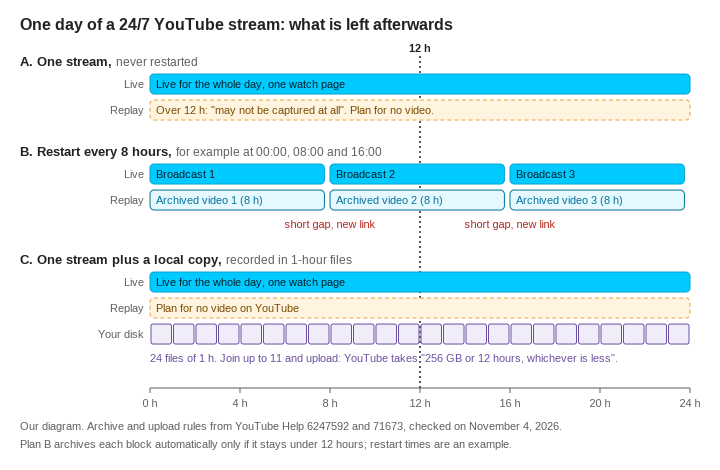
- A. One stream, never restarted. One link, one chat, no work. YouTube keeps nothing you can count on. This is the right plan when the stream plays a file you already have, such as a lofi loop; building that file and the sender is covered in our guide to making a 24/7 lofi stream.
- B. Restarts at fixed times. Restarting every 8 hours gives three archived videos a day, each 4 hours inside the limit, and the restart always falls at the same clock times, so you can put it in your quietest hours. With 11-hour blocks you restart less often, but the restart time shifts from day to day. Every restart opens a new watch page with an empty chat; if nobody watches the chat overnight, see moderating YouTube live chat on a 24/7 stream. In YouTube Studio you can schedule the next block with "Reuse settings", and "Copying a stream by selecting “Reuse settings” will also copy your auto-start and auto-stop selections" (YouTube Help 9854503). Watch the first restart yourself before you leave it to run unattended.
- C. One stream plus your own recording. Viewers keep one link, and you keep every hour on your own disk, to upload the parts worth keeping later. YouTube's upload limit decides how big each upload can be: "The maximum file size you can upload is 256 GB or 12 hours, whichever is less", and only "Verified accounts can upload videos longer than 15 minutes" (YouTube Help, upload videos longer than 15 minutes). The tested setup is below.
Plans B and C combine well: restarts for watch hours on the channel, plus a local recording in case an archive fails to appear.
Twitch: 48 hours, then the stream ends
Twitch is the only platform in this list that states its cap with no room for exceptions:
"The maximum broadcast length is 48 hours. This cannot be changed. Reconnection behavior may depend on encoder used."Twitch Help, Broadcasting Guidelines
Past broadcasts (Twitch's replays) are only saved if "Past Broadcast storage is turned on in your Stream Settings". Twitch Partners, Prime and Turbo users keep them "for 60 days before being deleted", Affiliates for 14 days and everyone else for 7 days. The storage table lists "No hourly limit" for past broadcasts. If you stream in 2K or in vertical format, "The higher-quality version (2K or vertical) expires 7 days after your stream" and the 1080p or horizontal version stays for the rest of the period (Twitch Help, On-Demand Content). To keep them longer, Twitch's advice is to "download or export them" before the window closes.
Twitch also has a rule for pre-recorded video. "Reruns are non-live content that you can play on your channel", and Twitch asks you to "let your viewers know when you're broadcasting pre-recorded content" (same page).
A 24/7 loop on Twitch therefore needs a restart at least every 48 hours. Note that Loopcast, the hosted service we recommend below, does not stream to Twitch.
Kick: no published limit
Kick does not publish a maximum live stream length that we could find in its help center or community guidelines. Its replay rules are short: "Verified streamers can keep stream replays on their channel for up to 30 days after the livestream ends. For non-verified streamers, replays remain available for 7 days after the livestream concludes." A channel keeps at most 30 replays if verified and 16 if not (Kick Help, VODs). Partner and verified channels can pin "up to 5 VODs at a time" to keep them for good (Kick Help, pinning VODs).
One number to be careful with: Kick's scheduling page says "Maximum stream duration is 48 hours". That is the longest duration you can enter for a calendar entry, and the same page answers the obvious question. Asked "Will my stream automatically end when the estimated duration I set is reached?", Kick says:
"No. The estimated duration is only used to display how long your stream is expected to run in the calendar for your viewers. It does not affect your live stream in any way. You can stream for as long as you like regardless of the estimated duration you set."Kick Help, setting up scheduled streams
That is the closest Kick comes to a statement on stream length. Claims online that Kick only saves the first 48 hours of a stream do not appear on any Kick page we read. Kick does not publish a length limit for replays either; what it limits is how long they stay and how many you keep. Pinned VODs are kept for good; Kick notes that "VODs you pinned before 29 September 2026 work differently": unpinning one deletes it 24 hours later, even before its normal expiry (Kick Help, pinning VODs).
Facebook Live: 8 hours, and no loops
"The time limit for a live video session on Facebook is 8 hours."Facebook Help, time limit and guidelines for live streaming
The same page says the limit applies to streams from computers, from external software or the API, and from phones. "Select premium partners, gaming creators, and media organizations may be approved for longer streams, typically up to 12 hours", and "There is no grace period once the limit is reached." Replays are "automatically available for replay for up to 30 days after broadcast". Until February 2025 they were kept indefinitely (Meta newsroom, February 18, 2025).
For a looped channel the bigger issue is policy, not time. Facebook's Live policies say:
"Facebook Live should not be used to broadcast looping videos, static images, or poll-only videos." One example given: "Streaming a 20-minute clip that is continuously looped".Facebook Live Policies
Pre-recorded footage in a live broadcast "must be clearly marked as pre-recorded" (same page). To go live at all, "Your account must be at least 60 days old" and a Page or professional profile needs "at least 100 followers" (Facebook Help, go live).
TikTok LIVE: no published limit
TikTok's support pages give no maximum length for a LIVE. They do give the entry rules: "Be at least 18 years old to go LIVE" and "Have 1,000 followers to go LIVE (may vary across regions)" (TikTok Support, what is TikTok LIVE). After a LIVE, "Replays are available for you to view and download for 30 days" (TikTok Support, LIVE replay). TikTok's newsroom says content that is "graphic, inauthentic or low quality" is not eligible to earn money through LIVE features (TikTok newsroom, May 24, 2024).
Instagram Live: no published limit
Instagram's current help pages do not state a maximum. The 4-hour figure you will see comes from 2020 coverage of a change "from 1 hour to now 4 hours" (TechCrunch, October 27, 2020); we could not find it on any Instagram page today. Only "a public account with 1,000 followers or more" can start a Live, and "Newly created accounts may not be able to go Live" (Instagram Help, start a live video). Lives are "automatically saved to your Archive, where you can access them for up to 30 days" (Instagram for Creators, Live).
X: 24 hours in Live Studio
X has two help pages with two answers. The current tool, Live Studio, says: "Livestreams have a maximum duration of 24hours." It adds that very long livestreams "may experience slower loading or replay issues" (X Help, Live Studio). The older Media Studio Producer page still says "There is no limit to how long you can stream on X" (X Help, Media Studio Producer). We would plan for 24 hours. X does not say how long replays are kept.
LinkedIn Live: 4 hours
LinkedIn's developer documentation for live events sets the limit: "Duration max 4 hours. Live Events may not exceed 4 hour limit." (LinkedIn Live Events API docs). Access is not automatic: members and Pages "with more than 150 followers and/or connections are eligible to be evaluated" (LinkedIn Help, access criteria). Since "June 22, 2026, the ability to go live spontaneously is no longer available. All events must be scheduled ahead of time." Every LinkedIn Live is public and recorded, and stays on your feed afterwards (LinkedIn Help, LinkedIn Live overview). LinkedIn is built for events, not 24/7 channels.
Rumble: no published limit
Rumble's support pages give no maximum stream length and no replay retention period. When you set up a stream you can go live now or schedule it "up to 24 hours into the future", and you can choose "to hide the live replay of the stream" (Rumble Support, how to set up a livestream). Rumble Studio "supports streaming to only one Rumble channel or account at any given time" (Rumble Support).
Keep your own copy of a long stream (tested)
YouTube's advice for long streams is "We recommend recording a local archive as a backup" (YouTube Help 6247592). Whether you need one depends on what you stream. A looped file does not: the file is the content. A stream that shows something that exists nowhere else does: a live camera such as a bird feeder or aquarium cam, a live show on a radio station stream, a talk segment between podcast episodes, or a one-off event. Recording in short files, one per hour, means a crash or a full disk costs you at most the file being written, and the hours you want are easy to find.
From OBS
OBS can record while it streams. Its knowledge base calls it "a great tool for being able to record, either at the same time as streaming or solely for offline usage", and on the file format: "MKV is recommended in case of unforeseen issues arising, since MKV will not corrupt the whole file if there is no graceful stoppage of recording." Recording at a quality other than the stream's costs more: "anything that is not Same as stream will take extra resources from your computer" (OBS Knowledge Base, recording output guide). For hour-long files, OBS has a recording option labelled "Automatic File Splitting" with a "Split by Time" setting (labels from OBS Studio's interface text). We did not test the OBS route; the next part we did.
From an ffmpeg sender: one command, two outputs
If ffmpeg sends your stream, its tee muxer can write the same packets to YouTube and to disk. The ffmpeg documentation says it "can be used, for example, to stream a video over a network and save it to disk at the same time", and "With the tee muxer, the audio and video data will be encoded only once" (ffmpeg formats documentation). We tested it with ffmpeg 7.0.2. First, a 35-second test file at 1280x720 and 30 fps with a keyframe every 2 seconds and AAC sound:
ffmpeg -f lavfi -i testsrc2=size=1280x720:rate=30 -f lavfi -i sine=frequency=440:sample_rate=44100 -t 35 -c:v libx264 -g 60 -pix_fmt yuv420p -c:a aac -b:a 128k input.mkvThen the sender, with a file standing in for YouTube and a 10-second segment length so the test finishes in half a minute:
ffmpeg -re -i input.mkv -map 0:v -map 0:a -c copy -f tee "[f=flv]test.flv|[f=segment:segment_time=10:reset_timestamps=1:strftime=1:onfail=ignore]rec-%Y%m%d-%H%M%S.mkv"-map 0:v -map 0:ais required: with tee, "all streams intended for output must be specified using -map".segment_timeis the file length in seconds. Each file starts on a keyframe ("Every segment starts with a keyframe of the selected reference stream"), so keep a fixed keyframe interval.reset_timestamps=1starts each file "with near-zero timestamps", so every file plays on its own.strftime=1names each file by the time it started, so a restarted recorder does not write over yesterday's files.onfail=ignoreon the recording means a disk problem does not take the stream down: "ignore will ignore failure on this output, so other outputs will continue without being affected".
The run took 34.5 seconds, as -re sends in real time. We checked every file with ffprobe:
for f in rec-*.mkv; do printf '%s ' "$f"; ffprobe -v error -show_entries format=duration -of csv=p=0 "$f"; done| File | Duration (ffprobe) | First frame a keyframe | Streams |
|---|---|---|---|
| Live output (test.flv) | 35.07 s | Yes | Video and audio |
| Recording, file 1 | 10.07 s | Yes | Video and audio |
| Recording, file 2 | 10.03 s | Yes | Video and audio |
| Recording, file 3 | 10.04 s | Yes | Video and audio |
| Recording, file 4 | 5.06 s | Yes | Video and audio |
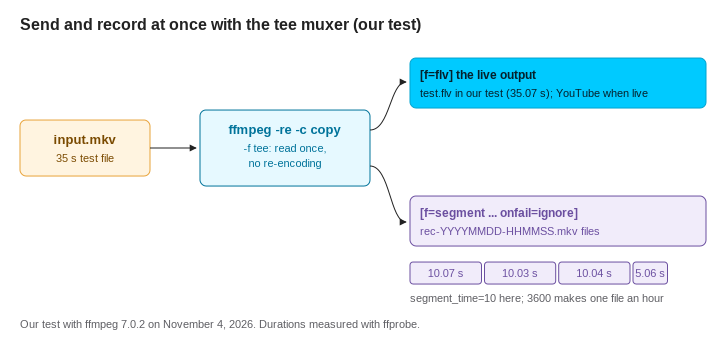
To go live, replace test.flv with the stream URL and key from YouTube Studio (inside the same quotes) and segment_time=10 with segment_time=3600. We tested with a file as the input because the result can be repeated; with a camera or another live input, run the same short test first.
Two things that went wrong first
- An MP4 input broke the live output, quietly. Our first run read an MP4 file. ffmpeg printed "Tag avc1 incompatible with output codec id '27'", then "continuing with 1/2 slaves", recorded all four files, and ended with exit code 0. The output that stood in for YouTube was empty. Adding
-tag:v 0did not fix it. Copying the MP4 into MKV first did, with the same results as the table above:ffmpeg -i input.mp4 -c copy input.mkv. Whatever your input, read the first lines of the log for "continuing with". - A recording cut off mid-file. We stopped two 8-second recordings with kill -9, the way a crash or power cut would. The MP4 could not be opened at all ("moov atom not found"). The MKV played up to the cut, 7.5 seconds, with a warning that the "File ended prematurely". That is why the hour files above are MKV, and why OBS recommends it.
Joining hours into one upload
To upload a stretch of the stream, join the hour files with ffmpeg's concat demuxer, without re-encoding:
ls rec-*.mkv | sed "s/.*/file '&'/" > list.txt
ffmpeg -f concat -safe 0 -i list.txt -c copy joined.mkv
Our four files joined into one file of 35.22 seconds that decoded with no errors; the joins added about a fifth of a second in total. Keep each upload to 11 files at most, as YouTube takes "256 GB or 12 hours, whichever is less". If you changed the output settings between hours, the files no longer match, and ffmpeg joins them anyway without an error; our clip check script finds the odd file before you join.
Storage is the other limit. The numbers below are our arithmetic from YouTube's H.264 bitrates for 1080p at 30 fps, a minimum of 5 Mbps and a recommended 14 Mbps (YouTube Help, live encoder settings), plus 128 kbps of audio.
| Video bitrate | Per hour | Per 11-hour upload | Per day | Per 30 days |
|---|---|---|---|---|
| 5 Mbps (YouTube's minimum) | 2.3 GB | 25.4 GB | 55.4 GB | 1.66 TB |
| 14 Mbps (YouTube's recommendation) | 6.4 GB | 69.9 GB | 152.6 GB | 4.58 TB |
Below about 47 Mbps, 12 hours of video stay under 256 GB, so for a 1080p stream the 12-hour cap is the one you reach first. A month of recording, on the other hand, fills a large disk; delete the hours you will never upload.
Keeping a stream up for days
Where the platform sets no cap, the weak point is whatever sends the stream. There are three common setups for a looped video. A live camera, such as a bird feeder or aquarium cam, needs a relay that restarts on its own instead; our guide to live streaming a bird feeder or aquarium covers that setup, including the timeout a relay needs when a camera freezes.
| Compared | Hosted: Loopcast (our pick) | Your own PC with OBS | A rented server (VPS) with ffmpeg |
|---|---|---|---|
| What has to stay on | Nothing on your side | Your computer and home connection | A server you set up and maintain |
| Restart after a drop | Automatic | You, or a script you write | A script you write |
| Cost | $0.72 per 24 hours, prepaid | Electricity and wear on your PC | Monthly server rent plus your time |
| Platforms | YouTube, Kick and Steam only; each extra platform costs more | Any | Any |
| Output quality | 1080p at 30 fps | Whatever you set | Whatever you set |
If you go the home PC route, our guide to looping a video in OBS Studio covers the Loop setting, automatic reconnect and what tends to break on a run of several days.
Running on Kick instead? See Loopcast for Kick. Whichever setup you use, keep the loop file and the playlist rights in order before you go live. Our guide to where lofi channels get their music covers the second part. On Kick, music is enforced by DMCA notice and a three-strike rule, explained in can you play copyrighted music on Kick. Whether looping a pre-recorded video is allowed on YouTube at all is covered in Loopcast's explainer.
FAQ
Is there a time limit on YouTube live streams?
Not for the broadcast: YouTube documents no maximum length, and its list of verified encoders includes products built for 24/7 streams. What changes past 12 hours is the replay, which "may not be captured at all", and possibly the rewind window.
Which platforms cut a live stream off?
Of the nine we checked, four publish a hard limit: LinkedIn Live (4 hours), Facebook Live (8 hours, up to 12 for approved partners), X Live Studio (24 hours) and Twitch (48 hours). YouTube, Kick, TikTok, Instagram and Rumble publish none.
Does YouTube save the last 12 hours of a long stream?
Do not count on it. YouTube Help says a stream under 12 hours can be archived automatically and that a stream over 12 hours "may not be captured at all". If you need a recording, record it yourself.
Do watch hours from a 24/7 YouTube stream count toward monetization?
Only if the stream is public and is converted to a video afterwards. YouTube excludes "Livestreams that are unlisted, deleted, or not converted to VOD". In our reading, a stream that runs past 12 hours and is not archived falls into that exclusion.
How do I keep a recording of a 24/7 YouTube stream?
Record it yourself, as YouTube recommends "recording a local archive as a backup". Record in MKV and in hour-long files: OBS has an "Automatic File Splitting" option, and an ffmpeg sender can stream and record at once with the tee and segment muxers, as tested above. Or restart the stream before 12 hours, so YouTube archives each block.
Can I upload a recording of a long stream to YouTube?
Yes, in parts. "The maximum file size you can upload is 256 GB or 12 hours, whichever is less", and uploads longer than 15 minutes need a verified account. Joining up to 11 one-hour files gives an upload under both limits at normal 1080p bitrates.
Can I run a looped video 24/7 on Facebook Live?
Facebook's Live policies say Live "should not be used to broadcast looping videos", and every stream ends at 8 hours. Facebook is the wrong platform for a looped 24/7 channel.
How long can a Kick stream run?
Kick publishes no maximum, and its scheduling page says "You can stream for as long as you like regardless of the estimated duration you set." The 48-hour figure on its help center applies to scheduled stream entries, not to live broadcasts. Replays stay 7 days, or 30 for verified channels.
Sources
- YouTube Help: Archive live streams, DVR (older wording compared via web.archive.org), encoder streaming, getting started, Partner Program eligibility, YPP updates, trim, stream keys, upload length and live encoder settings.
- Twitch Help: Broadcasting Guidelines and On-Demand Content.
- Kick Help: VODs, pinning VODs and scheduled streams.
- Facebook Help: time limit and guidelines, go live, Facebook Live Policies and Meta newsroom, February 18, 2025.
- TikTok Support: what is TikTok LIVE, LIVE replay and TikTok newsroom.
- Instagram Help: start a live video, Instagram for Creators: Live and TechCrunch, October 27, 2020.
- X Help: Live Studio and Media Studio Producer.
- LinkedIn Live Events API docs, LinkedIn Help: access criteria and LinkedIn Live overview.
- Rumble Support: how to set up a livestream and streaming to multiple channels.
- ffmpeg formats documentation: tee and segment muxers, OBS Knowledge Base: recording output guide and OBS Studio interface text. Recording tests run with ffmpeg 7.0.2.
- Loopcast pricing, Loopcast for YouTube and Loopcast for Kick.